Login to Google Domains #
1. Login to Google Domains here.
2. By default you should be taken to the “My Domains” page. If not, you can navigate to this page from the left-hand menu.
3. Click the name of the domain you entered on your intake form. Then from the left-hand menu click “DNS.”
4. At the top of this page you will see a “Resource records” section. and some fields where you can enter in some info.
Add The A Record #
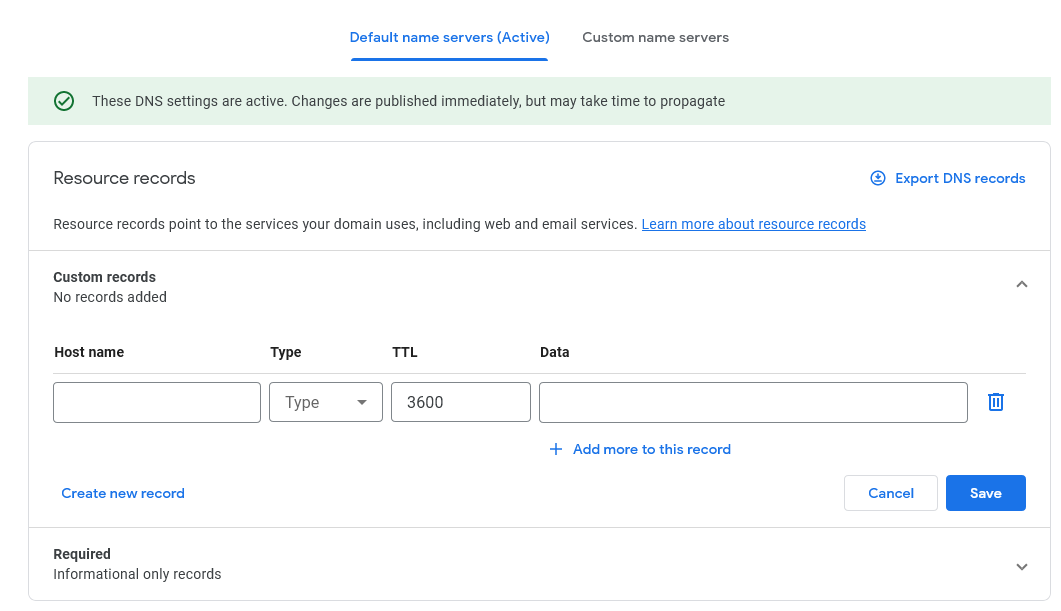
5. Set the fields following the info below and then click the “Save” button.
- Host name – Leave empty
- Type – A
- TTL – Default (3600)
- Data – 45.56.70.131
Add The CNAME #
6. We have one more record to add, so now click “Manage custom records” and then click “Create new record.” *Make sure to create a new record and not change the one you just added in the previous step!


7. Set the fields following the info below and then click the “Save” button.
- Host name – www
- Type – CNAME
- TTL – Default (3600)
- Data – Enter the domain name you’re currently setting up. Make sure it doesn’t have www, http, or anything else before/after it. Just the domain name. It will be in the upper-left of this page if you want to copy it.
Verify #
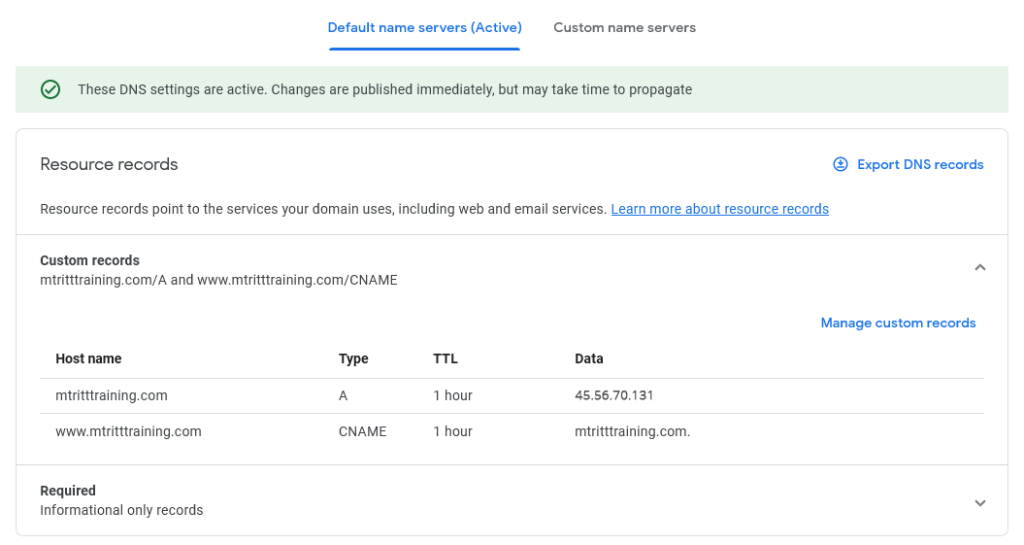
8. It should look like the picture below (with your domain name). If you need help, please open a ticket from the bottom-right of this page.